Barcode Scanning
Barcode scanning built for busy pharmacy counters.
Connect a keyboard-mode USB or Bluetooth scanner, match product barcodes in inventory and scan into checkout. Confirm the medicine, pack and sale unit before completing each bill.
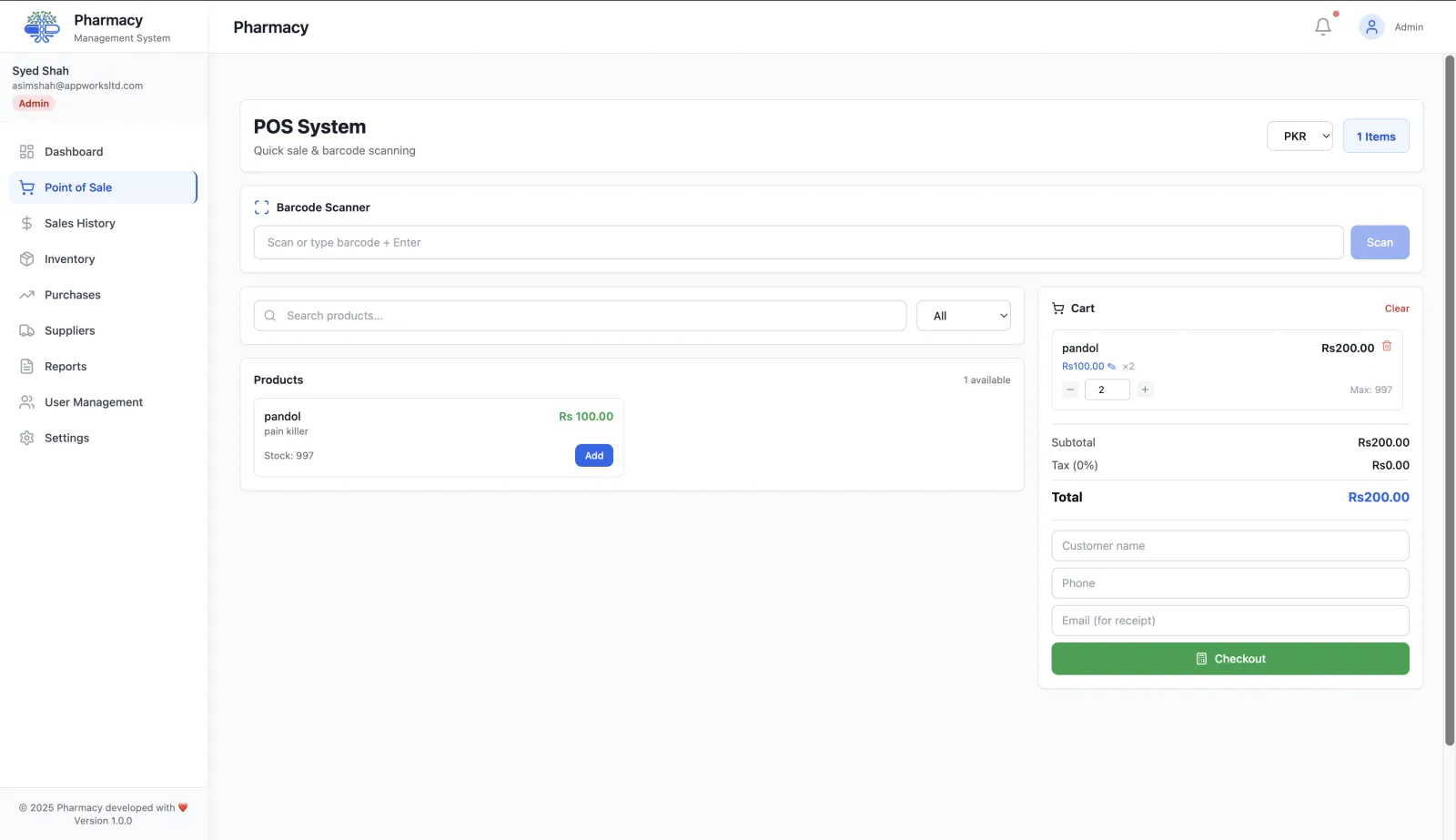
From barcode lookup to a completed sale
Find the product, check available stock and complete checkout with the correct sale unit.
Scan barcode
Focus the POS search field, then scan a code supported by your scanner.
Instant lookup
Match the scanned code to a saved product barcode in your inventory.
Added to cart
The product is validated for stock and added to the current sale automatically.
Stock updated
Completing the sale deducts the sold quantity from recorded inventory.
Scanner features included in every account
Keyboard-mode USB and Bluetooth scanners
Use a scanner that sends decoded codes as keyboard input. Check device mode, pairing and an Enter suffix before your first sale.
Scan directly into checkout
Look up saved product barcodes and add available items to the cart. Response time depends on the device, catalog and connection.
Formats your scanner can read
EAN-13, UPC-A and CODE128 work when decoded by your scanner. QR and other 2D codes require a compatible scanner.
Audio feedback
A high-pitch beep confirms a successful scan; a low beep signals an error — cashiers always know the result without looking at the screen.
Auto-focus & keyboard shortcut
Click the search field or press B/F2 when not typing in another input to return focus for the next scan.
Manual entry fallback
No scanner? Type a barcode directly and press Enter. The same lookup, stock validation, and cart logic applies.
Barcode scanning is part of a complete POS system
Barcode scanning is one part of the pharmacy POS software. Scanned products draw from live inventory and every completed sale appears in your sales history automatically.
Setting up barcode scanning in your pharmacy
Use a scanner in keyboard mode and test its output with your actual medicine packs. Configure the device according to its manual and save matching product barcodes before checkout.
Connect a scanner
Plug in a USB scanner or pair a Bluetooth one. Most retail scanners act as a keyboard, which is all RunMyPharmacy needs.
Store barcodes on products
Add the barcode to each product in inventory by scanning the pack, so the POS can recognise it at checkout.
Scan at the counter
Scan into the POS search field and the product goes straight into the cart. Press B or F2 to return focus to the scan field at any time.
Fall back to search when needed
If a label is damaged, type the brand or generic name in the same field and press Enter.
What barcode scanning changes at the counter
Faster checkout
One scan adds the right product at the right price, which keeps queues short at busy times.
Right product, right price
Scanning removes the risk of picking a similar-looking product name or typing the wrong price.
Clear confirmation
An audible beep confirms each scan. It can be muted for quiet environments.
Accurate stock
Because every item is captured, stock deductions match what actually left the shelf.
Pharmacy barcode scanner setup and troubleshooting
RunMyPharmacy accepts scanner input as text in the POS search field. Compatibility depends on the scanner, its keyboard mode and the codes it can decode—not simply whether the device connects over USB or Bluetooth.
Test keyboard mode and the Enter suffix
Connect the scanner and scan a pack into a plain text field first. It should type the complete barcode. Configure an Enter suffix using the scanner manual so the POS submits the lookup after each scan. If the scanner only types the code, press Enter manually. A 1D scanner may not decode QR codes; test the actual labels used in your store.
Match the barcode to the inventory record
Save the scanned code on the correct product and check leading zeros, strength and pack size. If the POS cannot find it, search by name and inspect the saved barcode rather than creating a duplicate product immediately. An unreadable label can be handled by manual barcode entry or brand/generic-name search.
Check focus when nothing appears in the cart
Click the POS search field, or use B/F2 while you are not typing in another field. Scan again and look for the on-screen success or error message. A keyboard-mode scanner sends input to the focused field, so a scan while editing a customer phone number will not search the product catalog.
Check stock and units after a successful lookup
Finding a product is only the first step. Confirm its available stock and selected sale unit, then inspect the pack you are dispensing. A catalog barcode does not verify expiry, batch or storage conditions. Complete a trial sale and check the receipt and stock balance before relying on the scanner throughout a busy shift.
Frequently asked questions
Which barcode scanners work with RunMyPharmacy?
Any USB or Bluetooth scanner that works in keyboard mode, which covers most retail barcode scanners.
Which barcode formats are supported?
RunMyPharmacy reads whatever your scanner decodes, including common pharmacy formats such as EAN-13, UPC-A and CODE128. 2D codes such as QR work if your scanner supports them.
What if a product has no barcode?
Search by brand or generic name in the same field. You can also add or change the barcode on the product in inventory.
Can I use a scanner with a tablet?
Yes. RunMyPharmacy runs in the browser, so a Bluetooth scanner paired with a tablet or laptop works the same way.
More questions? Read the full FAQ or contact our team.
Keep reading
Pharmacy POS
Pharmacy POS software for Pakistan: barcode billing, brand and salt search, box/strip sales and PKR payment records. Try RunMyPharmacy free during early access.
Inventory Management
Manage medicine stock, boxes, strips, batch expiry and low-stock levels with RunMyPharmacy. Pharmacy inventory software for medical stores in Pakistan.
How It Works
Set up RunMyPharmacy in minutes: create an account, add products, invite your team and start selling with barcode scanning.
Features
Every RunMyPharmacy feature: barcode POS, drug inventory, batch and expiry tracking, purchase orders, sales reports, online store and prescriptions.
Why your pharmacy needs pharmacy software
A busy counter is only one part of the job. Learn how dedicated pharmacy software connects billing, stock, purchasing and reporting—and how to decide whether it is worth the investment.
Try RunMyPharmacy free
Full access to every feature during early access. No credit card required.