Purchase Orders
Pharmacy purchase order management from draft to delivery.
Create purchase orders, track them to delivery, mark deliveries as received, and let inventory update automatically — all in one seamless workflow.
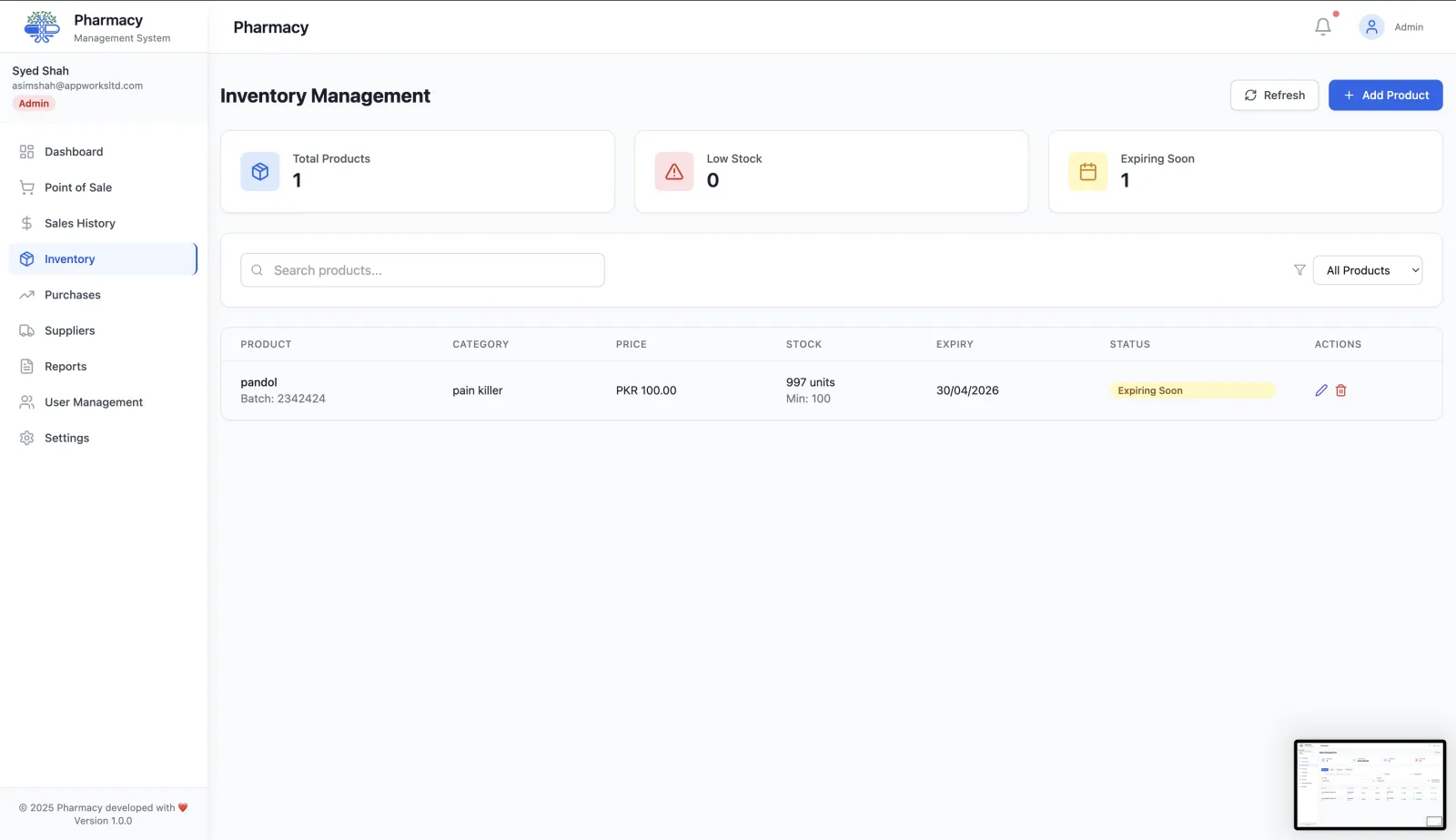
Everything you need to manage pharmacy purchasing
Draft and confirm purchase orders
Create orders from scratch or from low-stock alerts, send them to suppliers, and track status from draft to delivered.
Receive stock against orders
When deliveries arrive, mark items received and your inventory updates automatically — no manual entry required.
Invoice numbers on every order
Store the distributor’s invoice number with each purchase order so deliveries are easy to reconcile later.
Partial deliveries
Handle split shipments cleanly — mark partial quantities received without losing track of what's still outstanding.
Purchase history and reports
Review historical orders by supplier, date, or product to identify patterns and negotiate better terms.
Low-stock trigger integration
Create a purchase order from any low-stock alert in seconds — the product and quantity are pre-filled.
Purchasing connects your supply chain end-to-end
Purchase orders connect directly to supplier profiles, inventory management, and batch & expiry tracking so you maintain full traceability without duplicate data entry.
The pharmacy purchase order workflow
Purchase orders in RunMyPharmacy move through clear statuses, and stock only changes when goods actually arrive.
Spot what to reorder
Low-stock alerts show products at or below their minimum stock level.
Create the purchase order
Choose a supplier, add products, quantities and costs, and record the invoice number. New orders start as pending.
Receive the stock
Mark the order as delivered when the goods arrive. Inventory is updated automatically.
Handle changes
Cancel orders that will not arrive. If a delivered order is changed back, the stock update is reversed so counts stay correct.
Why structured purchase orders matter
No phantom stock
Stock is only added on delivery, not when you place the order.
Clear status at a glance
Filter purchase orders by status to see what is still pending.
Spend you can report on
Purchases feed the purchases summary in reports for any date range.
Fewer emergency orders
Ordering from low-stock alerts keeps fast movers on the shelf.
Frequently asked questions
When is stock added from a purchase order?
When the order is marked as delivered. Pending and cancelled orders do not change stock.
Can I cancel a purchase order?
Yes. Cancelled orders stay in your history for reference but do not affect inventory.
What if I mark an order delivered by mistake?
Change its status back and the stock that was added is removed again.
More questions? Read the full FAQ or contact our team.
Keep reading
Supplier Management
Manage pharmacy suppliers, create purchase orders, receive deliveries into stock and keep invoice numbers, all in one system.
Inventory Management
Manage medicine stock, boxes, strips, batch expiry and low-stock levels with RunMyPharmacy. Pharmacy inventory software for medical stores in Pakistan.
Expiry & Batch Tracking
Track every medicine batch by expiry date, get alerts before stock is written off, and sell the earliest-expiring batch first.
Reports & Analytics
Track pharmacy revenue, payment methods, top-selling drugs, expiry losses and sales trends. Export CSV reports for data-driven decisions.
Try RunMyPharmacy free
Full access to every feature during early access. No credit card required.